Request Free Access to Marketplace Module
Liked one of our paid HubSpot modules and want to experience it first-hand before purchasing?

.webp?width=171&height=29&name=SG%20logo_171x29%20(1).webp)
.png?width=300&height=150&name=HUBSPOT%20MARK%20(2).png)
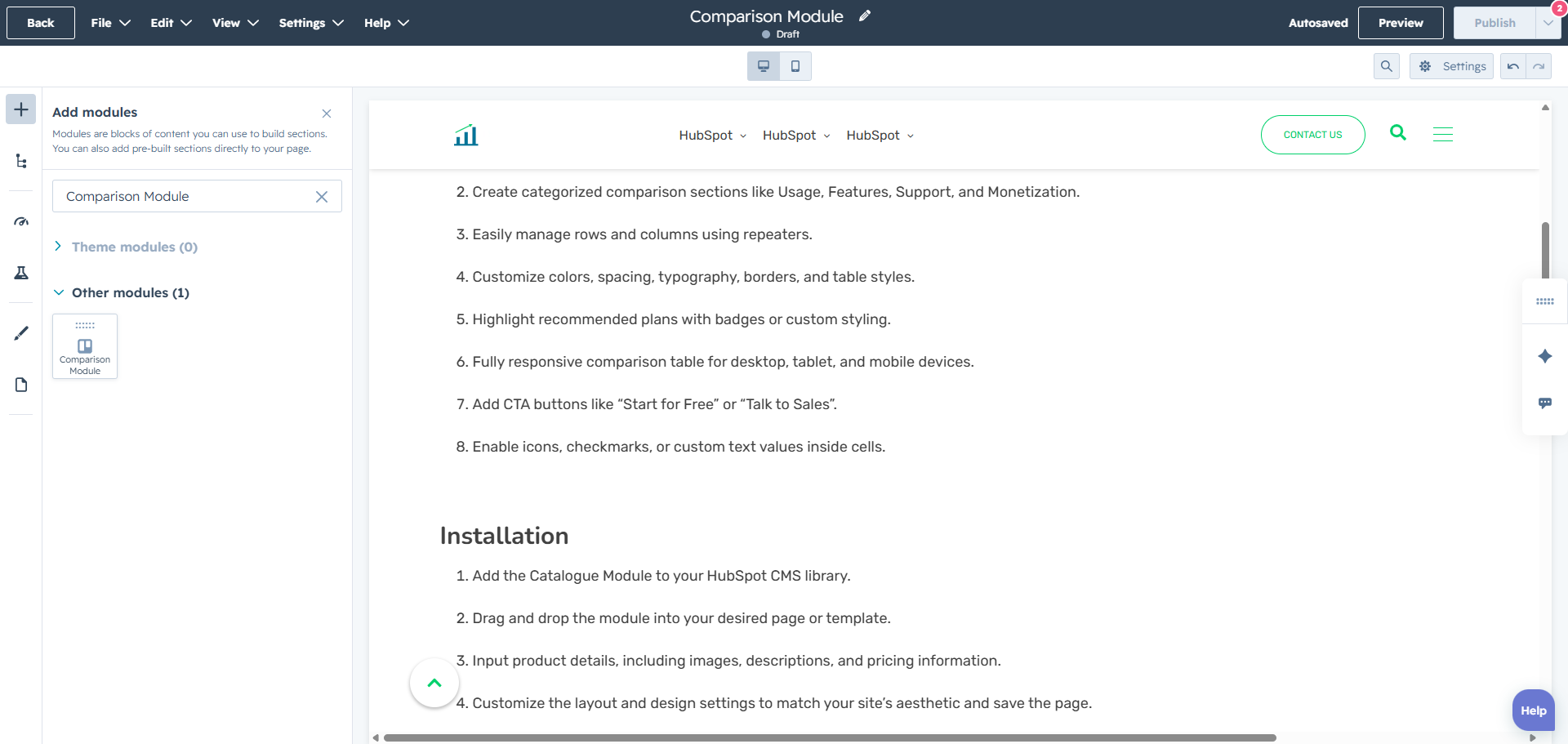
The Comparison Module is designed to showcase and compare multiple plans, packages, or service tiers in a clean and structured layout. It helps visitors quickly understand feature differences, usage limits, monetization options, and support availability across plans. The module supports flexible table layouts, custom styling options, CTA buttons, and fully responsive behavior for all devices.
No coding is required, making it easy for marketers and content editors to manage comparison tables directly inside HubSpot.
Add the Comparison Module to your HubSpot page, create plans using repeaters, customize feature categories, and highlight the differences between plans with an easy-to-manage comparison table.
Plan Comparison Layout:
Display multiple plans, packages, or service tiers in a clean and easy-to-compare table layout.
Customizable Design:
Fully adjustable design options, including colors, fonts, buttons, spacing, and layouts to match your branding.
Mobile-Responsive:
Automatically adjusts for a smooth and consistent comparison experience across desktop, tablet, and mobile devices.
Simple Content Management:
Easily manage and update plan details, feature values, sections, and CTA buttons directly within HubSpot’s interface.
Enhanced User Experience:
Organize comparison data clearly, making it easier for visitors to evaluate differences and choose the most suitable plan or service.
Need help setting up the module or customising it further?
We offer FREE 1-hour support for all our HubSpot modules.
Mail Us: resource@straightgrowth.com
Visit Website: https://www.straightgrowth.com/
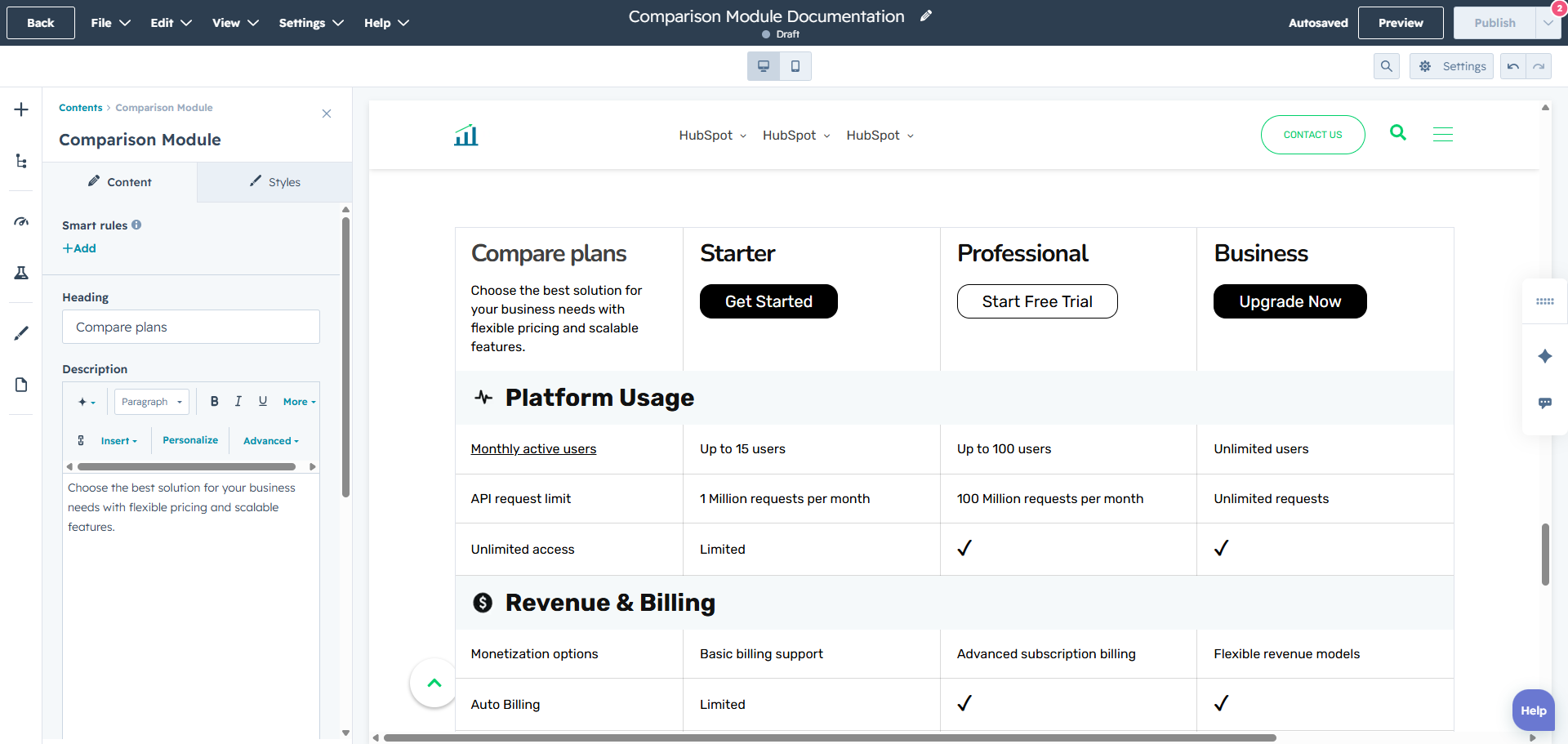
Compare plansChoose the best solution for your business needs with flexible pricing and scalable features. |
StarterGet Started |
ProfessionalStart Free Trial |
BusinessUpgrade Now |
|---|---|---|---|
 Platform Usage
|
|||
|
Monthly active users
|
Up to 15 users
|
Up to 100 users
|
Unlimited users
|
|
API request limit
|
1 Million requests per month
|
100 Million requests per month
|
Unlimited requests
|
|
Unlimited access
|
Limited
|
|
|
 Revenue & Billing
|
|||
|
Monetization options
|
Basic billing support
|
Advanced subscription billing
|
Flexible revenue models
|
|
Auto Billing
|
Limited
|
|
|
|
Monthly active users
|
Up to 15 users
|
Up to 15 users
|
Up to 15 users
|
 Core Features
|
|||
|
Custom domain support
|
Not included
|
Included
|
Included with SSL
|
|
Third-party integrations
|
Limited integrations
|
Standard integrations
|
Advanced integrations
|
 Customer Support
|
|||
|
Email support
|
Business hours support
|
Priority email support
|
24/7 email support
|
|
Live chat support
|
Not included
|
Included during business hours
|
24/7 live chat assistance
|
|
Monthly active users
|
Up to 15 users
|
Up to 15 users
|
Up to 15 users
|
Liked one of our paid HubSpot modules and want to experience it first-hand before purchasing?